What Is Inside a YSM Model?
No matter how it is packaged, every YSM model contains the same kinds of content.
Geometry
The geometry file describes the 3D shape of the character: its bones, cubes and pivot points. YSM uses the Bedrock Edition geometry format, the same format exported by Blockbench. A model may include separate geometry for the main body and for first-person arms.
Textures
Textures are PNG images that paint the model. A model can include several textures, which appear as different skins you can switch between in the model menu.
Animations
Animation files contain the movements of the model, such as idle, walk, run, swim and attack. They are also in Bedrock format.
Animation controllers
Controllers decide which animation plays at each moment. Read our animation controllers guide for a full explanation.
Metadata
Newer models include a description file with information such as the model's name, author, license and the files it uses. YSM reads this to display the model correctly in the menu.
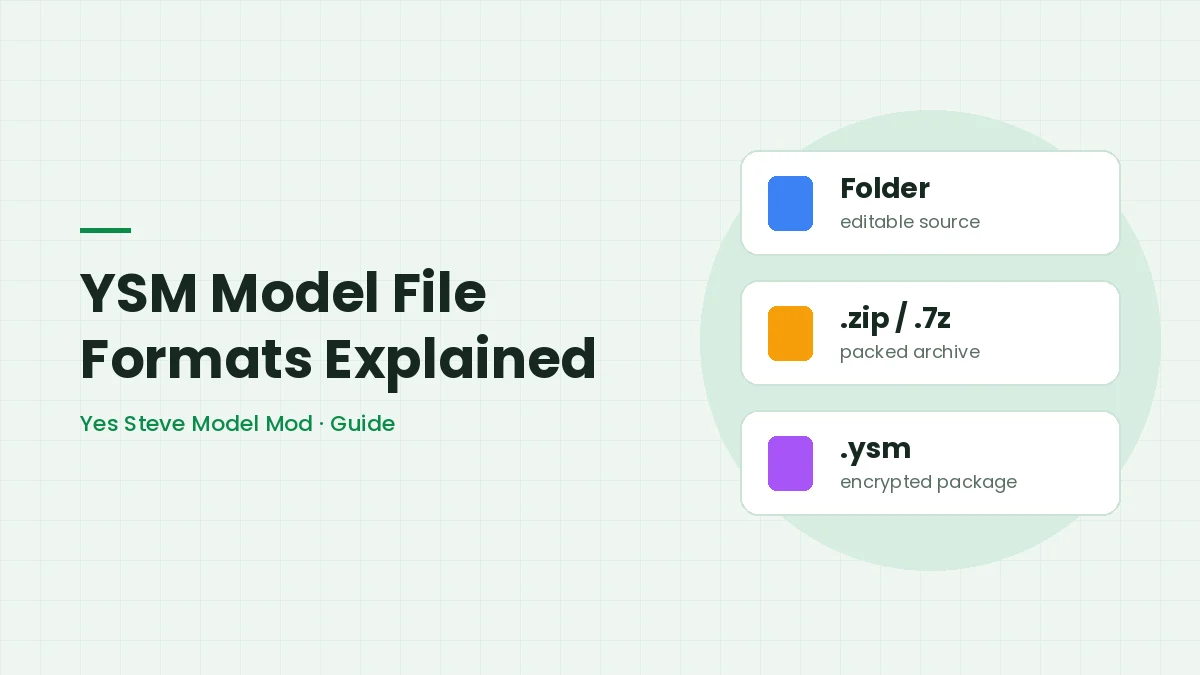
Format 1: Loose Folder
A loose folder is simply a normal folder that contains all of the model's files.
Advantages
- Easy to edit. Open any file, change it and reload in game.
- Best for creators. Ideal while building or testing a model in Blockbench.
- Easy to inspect. You can see exactly which files the model contains.
Disadvantages
- Messy to share. Many small files are easy to lose or mix up.
- Easy to break. Deleting or renaming one file can stop the model from loading.
How to install
Copy the folder into config/yes_steve_model/custom. Make sure the files sit directly inside the model's own folder, not one level deeper.
Format 2: ZIP or 7z Archive
Archives pack all model files into one compressed file.
Advantages
- One file to share. Easy to upload, download and back up.
- Smaller size. Compression reduces download size, which helps on servers.
- Read directly by YSM. In most cases you do not need to extract the archive.
Disadvantages
- Not directly editable. You need to extract it, edit and pack it again.
- Structure still matters. If the creator packed an extra folder inside, the model may not load.
How to install
Place the .zip or .7z file into config/yes_steve_model/custom and reload. If the model does not appear, extract it and check whether the files are hidden in an extra folder. If they are, move them up one level and use the loose folder method instead.
Format 3: Encrypted .ysm Package
The .ysm format is a packed and protected package created with YSM's own export feature.
Advantages
- Protects the creator's work. The contents cannot easily be extracted or copied.
- Single, tidy file. Easy to install and share.
- Fast to load. The package is prepared specifically for YSM.
Disadvantages
- Cannot be edited. You must ask the author for changes.
- Version-dependent. A package exported with a much newer YSM version may not load in an older one.
How to install
Drop the .ysm file into config/yes_steve_model/custom and reload. No extraction is needed or possible.
Quick Comparison
Which format should you use?
- Playing with downloaded models: use whatever format the creator provides.
- Building your own model: work in a loose folder until it is finished.
- Sharing with friends: a ZIP archive is simple and widely supported.
- Publishing a paid or protected model: export to
.ysmso your work cannot be copied easily. - Running a server: archives and
.ysmfiles keep the custom folder tidy and reduce mistakes.
Choosing the Right Format for a Server
On a server, models are sent to every player who joins. A clean, compact collection makes syncing faster.
- Prefer archives or .ysm files over large loose folders.
- Remove unused textures from models before packing them.
- Keep file names simple, without special characters or very long names.
- Test each model locally before uploading it to the server.
For the full process, read our server setup guide.
Converting Between Formats
Folder to ZIP
Select the model files inside the folder (not the folder itself, unless the creator's structure requires it) and compress them into a ZIP. Test the archive in game before sharing it.
ZIP to folder
Extract the archive into a new folder inside custom. Check that there is no double folder after extraction.
Folder to .ysm
Use YSM's export option in game to create an encrypted package from a model you made. The exact command or menu option depends on your YSM version, so check the in-game command help with /ysm.
.ysm to folder
This is not possible by design. Encrypted packages protect the author's work, and trying to break that protection goes against the creator's rights.
Keeping Your Custom Folder Organised
As your collection grows, a tidy folder saves a lot of time when something goes wrong.
Simple organisation rules
- Use clear names. Name each model after the character and version, for example
knight-v2.zip, instead ofdownload (3).zip. - Keep backups outside the game folder. Store the original downloads in a separate folder so you can restore a model quickly.
- Remove old versions. Two versions of the same model can confuse you in the menu and waste memory.
- Test before you keep. If a new model fails to load, fix or remove it right away instead of letting broken files pile up.
- Write down sources. A short text file listing where each model came from makes it easy to check licenses and find updates later.
Respecting Model Licenses
Most models are made by independent artists. Before using or sharing a model, check its license or the creator's terms.
- Personal use only means you may use it in your own game, but not upload it to a public server or re-share it.
- Server use allowed means you may add it to a server's collection, often with credit.
- No redistribution means you must not re-upload the files anywhere.
When in doubt, contact the creator and ask. Respecting licenses keeps the YSM community healthy and encourages artists to keep sharing.
Troubleshooting Format Problems
The archive does not appear in the menu
Extract it and look for a double folder or a missing texture. Then reload with /ysm model reload and check logs/latest.log for the model's name.
The .ysm file shows an error
The package may have been exported with a newer YSM version. Update YSM to the latest release from our download section, or ask the creator for a compatible version.
Textures are missing after packing
You may have left out a texture file or renamed it. Compare the archive contents with the original working folder.
Frequently Asked Questions
Are .ysm files safe?
They contain model data, not programs. Still, only download models from creators and communities you trust.
Is ZIP or 7z better?
Both work. ZIP is more widely supported by default on most systems, while 7z can produce slightly smaller files.
Can I mix formats in one custom folder?
Yes. YSM can load folders, archives and .ysm files side by side.
Conclusion
Every YSM model contains geometry, textures, animations and metadata, but the packaging changes how you use it. Loose folders are best for creating, archives are best for sharing, and encrypted .ysm packages are best for protecting finished work. Choose the right format for the job, keep your custom folder tidy and always respect each creator's license. For the full installation steps, see our custom models guide.